Thursday, 3 December 2015

Benefits Of Rooting Your Android Device

Rooting Your Android Device
Google’s Android is open, customizable and a highly versatile operating system compared to other mobile OSes. And rooting it allows users complete control on their devices. However, you may wonder as to what rooting your Android device involves and what are the benefits in doing so. First, it is essential to understand what rooting is all about.

For the uninitiated, rooting gives users root permission and access to their devices. Rooting also gives the users the ability to tweak the settings on their phones, flash custom ROMs on the phone for adding additional features, as well as modify the software on the device. However, rooting is not everyone’s cup of tea, but it can be done successfully provided the users follow the rooting instructions for their device carefully.

A thing to note is that with different kinds of Android phones available, the same rooting technique may not work for all. So before rooting, users need to ascertain whether or not a particular rooting method will actually work for their devices. Users should also know that doing so will void the manufacturer’s warranty on your device and there is a small chance that improper rooting can also damage the phone permanently. Nonetheless, there are still plenty of benefits to rooting your phone and it is a risk definitely worth taking.

Flash a custom ROM:

This is one of the best benefits of rooting an Android device. In simple terms, a custom ROM is a modified version of Android that users can install if they are not happy with the Android version that their device comes with. Adding a custom ROM adds more unique and convenient features to the phone that are not usually seen on their devices. Samsung devices are usually the most rooted of all, as users want to use stock Android ROMs that are much more agile than Samsung’s TouchWiz skin.

Flash a custom kernel:

A kernel allows apps on the phone to communicate directly with the hardware of the phone. A custom kernel helps improve the performance of the phone, enhance battery life, speed up battery charging, and also add advanced features such as Wi-Fi tethering on certain phones that do not come with this option.

Tweak under the hood settings: Users can tweak every little feature of their phone including customizing the keyboard layout, enhancing multitasking functionality, increasing the scrolling speed as well as adding interesting themes to the phone. Basically, rooting allows users to reach into the darkest corners of their phones and make the most of the changes that are possible.

Remove bloatware:

This is one of the best reasons for rooting. Often the phones are preloaded with software and apps that one does not use. These programs not only occupy the onboard memory, but can also drain the battery. Before uninstalling any apps, users should confirm that those apps are not vital to efficient functioning of their phones.

Backup:

Having a backup of crucial data and settings is highly recommended. Should a user want to migrate to a new Android handset or wishes to restore the deleted data to the current handset for any reason, then a backup must be readily available. This is also helpful even if the user is not rooting his/her device.

Apart from these benefits, rooting also helps to block annoying ads that appear in apps, boost the speed and battery life of the phone, automate everything as well as unlock certain hidden features in the device and install certain apps that are otherwise considered as incompatible.

Secret Codes For Your Android Mobile

Hi friends, Here is a wide collection of secret codes for your mobile with Android OS. These codes enables you to access the hidden options which are not shown by default on your device, and can be used for testing the functions of various utilities used by your mobile.

Note: We Cannot guaranty that these codes will work on all Android mobiles!

These codes are used only by technicians, So be careful with them and use it at your own risk. Press "Ctrl+D" for Future Use! :)

General Codes:


*#06# – To Display's IMEI number.

*2767*3855# – To format your device i.e To delete everything on the phone memory (Can be customized).

*#*#4636#*#* – This code will display your usage statistics and battery.

*#*#273282*255*663282*#*#* – This code helps you to back up all media files on your mobile.

*#*#197328640#*#* – This code will send you to the test mode, to test various functionality of your mobile.

*#*#1111#*#* – This code will display FTA software version.

*#*#1234#*#* – This code will show PDA and firmware version.

*#*#232339#*#* – For wireless LAN tests.

*#*#0842#*#* – This code is used  for Backlight/vibration test.

*#12580*369# – Display's Software and hardware info.

*#*#2664#*#* – This code is used for Testing the touchscreen.

*#9900# – System dump mode.

*#9090# – Diagnostic configuration.

*#*#34971539#*#* – Will display Detailed camera information.

*#872564# – USB logging control.

*#301279# – HSDPA/HSUPA Control Menu.

*#7465625# – This code will display phone's lock status.

*#0*# – This code will enable you to enter the service menu on newer phones like Galaxy S III.

*#*#7780#*#* – Reset the /data partition to factory state.


Basic Codes:

*#*#7780#*#*   - This code is used for factory restore setting.This will remove Google account setting and System and application data and settings.

*2767*3855#   -  This code is used for factory format, and will remove all files and settings including the internal memory storage. It will also re install the firmware.

*#*#4636#*#*   - This code show information about your phone and battery.

*#*#273283*255*663282*#*#*    - This code opens a File copy screen where you can backup your media files e.g. Images, Sound, Video and Voice memo.

*#*#197328640#*#*    -  This code can be used to enter into Service mode. You can run various tests and change settings in the service mode.

*#*#7594#*#*   -  This code enable your "End call / Power" button into direct power off button without asking for selecting any option(silent mode, aero plane and power-off).

*#*#8255#*#*  -  This code can be used to launch G Talk Service Monitor.

*#*#34971539#*#*    -  This code is used to get camera information. Please avoid update camera firmware option.

W-LAN, GPS and Bluetooth Test Codes:

*#*#232339#*#* OR *#*#526#*#* OR *#*#528#*#*   -  W-LAN test (Use “Menu” button to start various tests).

*#*#232338#*#*    -  Shows WiFi MAC address.

*#*#1472365#*#*    -  GPS test.

*#*#1575#*#*    -  Another GPS test.

*#*#232331#*#*   -  Bluetooth test.

*#*#232337#*#    -  Shows Bluetooth device address.

Codes to launch various Factory Tests:

*#*#0842#*#*   - Device test (Vibration test and BackLight test).

*#*#0588#*#*    - Proximity sensor test.

*#*#0*#*#*    -  LCD test.

*#*#2664#*#*   -  Touch screen test.

*#*#2663#*#*    -  Touch screen version.

*#*#0283#*#*   -  Packet Loopback.

*#*#0673#*#* OR *#*#0289#*#*    -  Melody test.

*#*#3264#*#*    -  RAM version.

Code for firmware version information:

 *#*#1111#*#*   -  FTA SW Version.

*#*#2222#*#*   - FTA HW Version.

*#*#44336#*#* - PDA, Phone, CSC, Build Time, Changelist number.

*#*#4986*2650468#*#*   - PDA, Phone, H/W, RFCallDate.

*#*#1234#*#*  - PDA and Phone.


Harmful Effects of Mobile Phones and their Solutions

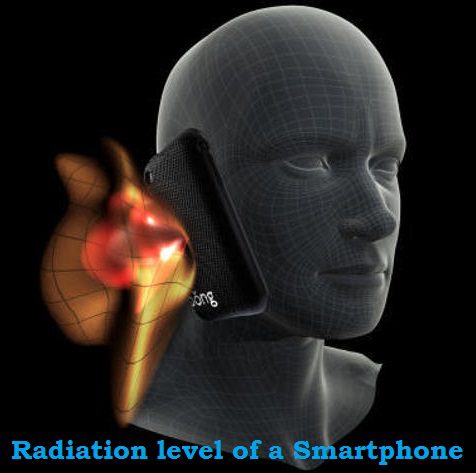
Smartphone has so much penetrated radiation_levelin our daily life that now no one can think of without it. Excessive use of smartphone may cause health problems but if you are even using less a smartphone with bad SAR (Specific Absorption Rate), that is most dangerous


Limits for Safe Exposure to radio frequency (RF) adopted by Federal Communications Commission (FCC) is 1.6 Watts per kilogram (1.6 W/kg). 
Any smartphone at or below this SAR (Specific Absorption Ratelevels is “safe” to use.

We can check Radiation level in terms of SAR of your smartphone by dialing a USSD code *#07# , if results shows SAR below 1.6 watts per kilogram (1.6 W/kg), then it is OK, otherwise you are advised to change your smartphone immediately.

Protect your loved ones as this also causes very harmful diseases like Cancer and Brain tumors.
If your phone has more than 1.6 watts per kilogram, then change your phone immediately.


Some tips -

1) Use your phone only when required. Do not always stick with it.
2) If Sim cards are not present in the mobile, then keep your phone at Flight mode, as this will stop the emergency signals and stop radiation.
3) Attend your Phone calls with your left ear.
4) Never sleep with your phone, as many of the people do, instead of this place your phone away at least 2 meters from you or use Airplane/Flight mode.
5) Attend your phone calls for minimum duration, use texting messages.
6) If you attend phone calls for a longer duration, then use earphones or Bluetubes / Airtubes 
as they are Radiation-Free.
7) Use Wired devices / Landline for no radiation 
8) Never use Bluetooth headsets, as they are as harmful as cell radiation
9) Prevent young children to use Cell, as Radiation are more harmful for them as they have thinner skulls.
10) Never attend calls when your battery level is low or you are in a Lift as this will increase the Radiation because in Lifts signals are cut and mobiles are forced to give out more radiation for signals

Unable to Access Android Studio add on list

Hello Friends,
Today I am gonna show you how to solve an error while installing Android Studio software.
While installing this error, you should have to face a problem the problem of Java requirement.This can be solved by installing Java Standard Edition. Then you may be be facing a problem after installation because of slow or no internet.

If you do not have internet or slow internet, then you may follow these steps to remove the error "unable to access android sdk add on list". As Android Studio checks for its latest version.This error can be removed by following one of the  methods :
Step:-
1 )Add the following code to "C:\Program Files\Android\Android Studio\bin\idea.properties"
2)  Open idea.properties with notepad
3) Then, enter the code anywhere in the lines (see image
Code :
disable.android.first.run=true
4) Save the file anywhere else,say Desktop (because notepad can't save the file in "C:\Program Files")
5) Now, cut the file and paste in the ""C:\Program Files\Android\Android Studio\bin\"
6) Replace the file.
7) Run the application

Thursday, 19 November 2015

See Any Mobile Phone IMEI Number

By Pressing Key of Mobile
*#06#

AVG Internet Security Antivirus Licence


Any One From This 

All Samsung Java Mobile Hardrest Key

*2767*3855#

Accept More Friend Request Automatically in Fb

*Login to your facebook account and click the friend requests icon to see the pending friend requests.
*Now, keep scrolling the list untill you reach the last request.
pending friend requests
*Now press F12 or ctrl+shift+J keys (in chrome browser) to open chrome console.
*Now copy the following code and paste in chrome console and press enter.

javascript:for( i = 1;i<document.getElementsByName("actions[accept]").length;i++){document.getElementsByName("actions[accept]")[i].click();}void(0);

Now your pending friend requests will be accepted automatically.
friend request accepted

Best Working Proxy In Airtel Free Internet

*Youtubefreeproxy.com ( 192.110.165.94 )
*Jetproxy.com ( 5.10.71.134 )
*Kproxy.in
*Zacebook.com

Bluestack Graphics Driver Update Problem Fix Trick

*First you need BlueStacks App Player Offline Installer
*Go to “Registry Editor” (Start > Run > type “regedit”)
*Navigate to “HKEY_LOCAL_MACHINE\SOFTWARE\BlueStacks\Guests\Android\Config”
*Create a new DWORD value by right click on the right panel and choose “DWORD Value”
*Rename DWORD Value name to “SkipGraphicsDriverCheck” and change the value “1” by double click it.
*Try to install the BlueStacks App Player again.

Friday, 6 November 2015

Q. How to Unlock Android Lock Pattern?

In different phone different , different  methods are apply

SAMSUNG
Hold these three keys together – Volume Up, Home Key, and Power Key. This will result in the display of the Samsung logo and a vibration can be felt. Immediately release the power key and hold the Home key and Volume Up key. You can get into the Android recovery system this way.

HTC
Hold the Volume Up key and the Power key. This turns on the android recovery system of the phone. To highlight the recovery mode use Volume Up and Down keys and for choosing it press the Power Key.

MICROMAX
Hold the Volume Up and Down keys. Also, hold the Power Key and till the recovery mode is turned on hold the three keys simultaneously. The phone asks the user to press the Volume Up key for choosing the Recovery mode.

GOOGLE NEXUS
Press the Power Key and the Volume Down key for feeling the vibration. Use the Volume Up and Down keys to move and use the Power Key to make a selection. An Android Guy and an exclamation mark appear. Now the Power Key has to be pressed and held to reach the Android Recovery mode.

If you use the different brand of the android phone, then you can search in the Google how to hard factory reset for your phone model. Also, remember, if you are in the recovery mode, the touchscreen never works, you need to use the Volume Up and Down keys. To start factory data  reset, press the Power Key.

Now after the reset is done, you can see your android phone working as before.

SONY XPERIA
First Turn Off And Then Press and Hold together: Power Button + Volume Up Button for several seconds


Hard Reset SONY Xperia SP C5303

First method:


Switch off the handset.
Reset SONY Xperia SP C5303
Now navigate to Settings -> Backup & reset -> Factory Data Reset -> Reset Phone.
Then choose option option "Erase everything", and confirm that.
Success!


Second method:

Power off the device.
Reset SONY Xperia SP C5303
Next hold and press Volume Up + Volume Down + Power button until you see menu.
Reset SONY Xperia SP C5303
In this menu choose option Recovery using Volume Down to navigate, and Volume Up.
* If Volume Up doesn't work, then use Power button to select.
Now you will see yellow triangle and Android logo.
Then press Volume Down + Volume Up to see menu.
Reset SONY Xperia SP C5303
Please use Volume buttons to browse option "wipe data / factory reset", and confirm that using Power button.
Select option "Yes -- delete all user data".
After that accept "reboot system now".

Third method:

Turn off your cell phone.
Reset SONY Xperia SP C5303
Now press and hold Volume Down.
Reset SONY Xperia SP C5303
Then press and release Power button.
Next you will see menu.
Choose option Clear Storage using Volume Down to scroll, and Power button to confirm.
Press Volume Up to confirm operation.
Reset SONY Xperia SP C5303

Fourth method:

Back up your important files, and download PC Companion from here: http://www.sonymobile.com/gb/tools/pc-companion/
After installation you will see window with 4 options.
Reset SONY Xperia SP C5303
Now hover your mouse over the option "Support Zone Now!" and click "Start".
Reset SONY Xperia SP C5303
Next plese wait, until your program Install a suitable additive.
Afterwards from the window with 3 options choose "Phone / Tablet Software Update", and click "Start".
Reset SONY Xperia SP C5303
Then click to "repair my phone / tablet".
Reset SONY Xperia SP C5303
Accept all informations.
Reset SONY Xperia SP C5303
Now your program will run "preparing computer for software update".
Reset SONY Xperia SP C5303
Select your model.
Reset SONY Xperia SP C5303
After that you will see window with informations.
Reset SONY Xperia SP C5303
Follow the instructions, and connect your device into your Personal Computer.
Success!

Fifth method:'

Make sure, that your phone is off.
Press and hold Volume Up + Home key + Power button together.
Reset SONY Xperia SP C5303
When you see logo of your phone, then release holded buttons.
Now use Volume Down to go down, and Home key, or Power button to select.
Select option "wipe data / factory reset".
Next choose "Yes -- delete all user data".
After that select "reboot system now".
Success!

Sixth method:

Check your device, that is it on.
Now press the phone's dialer and tap this: *2767*3855#
Then confirm all information on your screen.
Done!

Seventh method:

Power off your phone.
Reset SONY Xperia SP C5303
Then turn it on until you see logo Sony.
Now the Blue LED will light up and you phon will short vibrates.
Next quickly keep tapping Volume Up until you see Recovery mode menu.
Reset SONY Xperia SP C5303
When you see this menu, then select option "wipe data/factory reset".
After that confirm your choice pressing option "Yes -- delete all user data".
In the end tap "reboot system now".
Good job!


Combination 1 - Volume Up + Camera button.
Combination 2 - Volume Down + Power button.
Combination 3 - Volume Up + Power button.
Combination 4 - Volume Up + Home + Power button.
Combination 5 - Volume Down + Volume Up + Power button.
Combination 6 - Home + Camera button.
Combination 7 - Home + Power button

OR Pressing Any Key For 5 Sec

How to Reset Lost Windows Password with Hiren’s Boot CD?

How to Reset Lost Windows 7 Password with Hiren’s Boot CD? Go to the website  hirensbootcd.org  and click the Download link. Scroll dow...